Imagine your WiFi as a bustling party: knowing who's invited and who's crashing it can turn potential chaos into harmonious connectivity, all while keeping your digital home safe and efficient.
Understanding WiFi Device Monitoring
In today's connected landscape, your WiFi network hosts a variety of devices, from smartphones to smart appliances. Monitoring these connections reveals who's using your bandwidth and spots any uninvited users. This practice not only boosts security by detecting potential breaches but also optimizes performance by identifying resource hogs.
Think of it as a vigilant doorkeeper for your digital domain. With the average household now boasting over 20 connected gadgets, regular checks prevent slowdowns and protect sensitive data. Interestingly, many overlook this simple step, yet it can thwart common threats like neighborly bandwidth borrowing or more sinister intrusions.
By mastering monitoring, you empower yourself to maintain a smooth, secure online experience tailored to your needs.
Why Monitor Your WiFi Devices
Beyond curiosity, monitoring serves practical purposes. It helps pinpoint devices causing network lags, ensures only trusted gadgets connect, and aids in troubleshooting connectivity issues.
Key reasons include:
- Security: Spot unauthorized access early to prevent data theft.
- Performance: Identify bandwidth-intensive devices and manage usage.
- Compliance: In shared spaces, track adherence to usage policies.
This proactive approach transforms passive networking into an active defense strategy, keeping your connection reliable and responsive.
Methods to Monitor Connected Devices
Several approaches exist, each suited to different skill levels. Start with built-in tools for simplicity, then explore advanced options for deeper insights.
| Method | Pros | Cons | Best For |
|---|---|---|---|
| Router Interface | Built-in, no extra software needed | May lack real-time updates | Beginners |
| Mobile Apps | Convenient, notifications available | App-specific limitations | On-the-go monitoring |
| Scanning Tools | Detailed scans, device identification | Requires installation | Advanced users |
Choose based on your setup; combining methods often yields the best results.
Detailed Monitoring Process
Mastering the detailed monitoring process is the cornerstone of effective network management. This step-by-step approach empowers you to gain comprehensive insights into your WiFi ecosystem, allowing for informed decisions on security and optimization. Begin with the fundamentals to build a strong base, then refine your techniques for precision.
Preparation is key: Ensure you're connected to your network via a trusted device, preferably wired for stability during initial setup. Gather any necessary login credentials beforehand to avoid interruptions.
- Access the Router's Admin Panel: Open a web browser and enter your router's IP address, such as 192.168.1.1 or 192.168.0.1. Log in using the admin username and password. If you've forgotten these, consult your router's manual or perform a reset as a last resort.
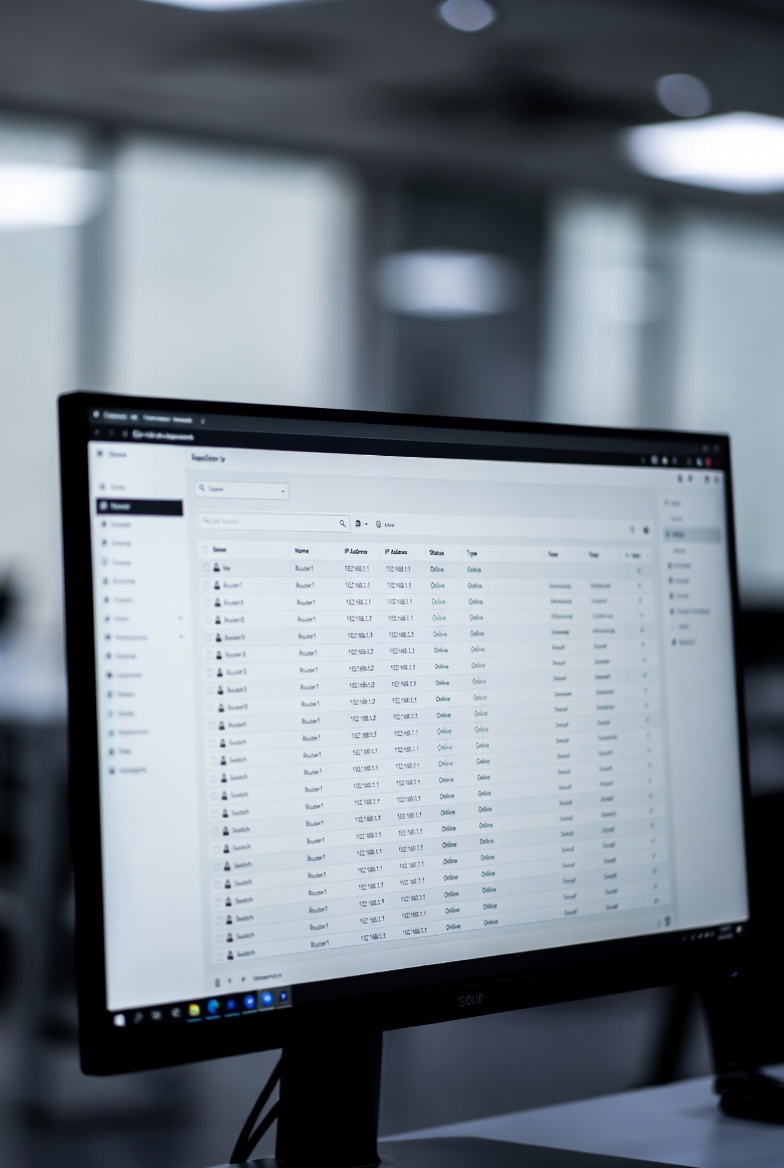
- Locate the Devices Section: Navigate through the menu to find areas labeled as Connected Devices, Attached Devices, Client List, or Network Map. This is where the real visibility begins, showing a snapshot of active connections.
- Review and Identify Devices: Examine the list carefully. Look for device names, IP addresses, MAC addresses, connection types (wired or wireless), and even signal strength. Cross-reference MAC addresses with your known devices to identify unknowns—many manufacturers embed clues in these unique identifiers.
- Refresh and Monitor in Real-Time: Use the refresh button to update the list dynamically. For ongoing surveillance, check during peak usage times to capture transient connections that might otherwise go unnoticed.
- Analyze Usage Patterns: Dive deeper by noting data consumption, connection durations, and activity logs if available. This helps spot anomalies like unusual data spikes that could indicate malware or unauthorized streaming.
- Implement Controls and Actions: If anomalies appear, take decisive steps: Block suspicious devices via MAC filtering, set bandwidth limits for heavy users, or enable notifications for new connections. Always document changes for future reference.
- Establish Routine Checks: Make monitoring a habit—schedule weekly reviews or integrate it into your security routine. Combine with password rotations and firmware updates for holistic protection.
This process forms the backbone of network oversight, evolving from a simple check to a strategic tool. By following these steps meticulously, you'll not only detect issues but also preempt them, ensuring your WiFi remains a reliable ally in your daily digital life.
Tools and Apps for Enhanced Monitoring
Elevate your efforts with dedicated software. Network scanners offer visual maps and alerts for new connections.
Popular options include:
- Free apps that scan and list devices with easy identification features.
- Command-line utilities for tech enthusiasts, providing raw data insights.
- Integrated router apps that notify you of changes in real-time.
These tools turn monitoring into an engaging detective game, revealing the stories behind each connection.
Troubleshooting Common Monitoring Challenges
Encountering hurdles? If lists seem incomplete, ensure all devices are active during scans. Unknown entries might be your own gadgets with generic names.
Common fixes:
- Cross-reference MAC addresses with known devices.
- Update router firmware for accurate reporting.
- Use multiple tools to verify findings.
Patience and persistence often resolve these puzzles, leading to a clearer network picture.
Advanced Techniques and Alternatives
For deeper dives, explore logging features that track historical connections. Set up alerts for unusual activity.
Alternatives include:
- Third-party hardware for enterprise-level monitoring.
- Open-source software for customizable dashboards.
- Integration with smart home systems for automated responses.
These elevate monitoring from basic checks to sophisticated network intelligence.
Frequently Asked Questions
Why is monitoring WiFi devices important?
It helps detect unauthorized access, manage bandwidth, and maintain network health by identifying potential issues early.
How can I view devices via the router interface?
Access the admin panel by entering the router's IP in a browser, log in, and check the connected devices section.
What tools can assist in monitoring?
Network scanning apps and software provide detailed views, including device types and activity logs.
Can I block unwanted devices?
Yes, use MAC address filtering or built-in controls to restrict access to specific devices.
How do I handle unknown devices?
Change your WiFi password immediately and enable stronger security measures to prevent future intrusions.
What if my device list is inaccurate?
Refresh the list, restart the router, or use advanced scanning tools for more precise detection.
Are there alternatives to router-based monitoring?
Third-party software and command-line utilities offer additional layers of insight and automation.
Disclaimer
This guide offers general information for educational purposes. Monitoring should comply with privacy laws; features depend on your equipment.