Access your Netgear admin panel now.
Netgear Router Login Guide
Netgear routers commonly use 192.168.1.1 or routerlogin.net as the gateway IP for admin access. This allows configuration of Wi-Fi, security, parental controls, and more. It's private and local-only, ideal for home and small business networks including modems like cable gateways.
How to Log In to Netgear Router
Simple steps for routers and modems:
- Connect to your Netgear local network (Wi-Fi or Ethernet).
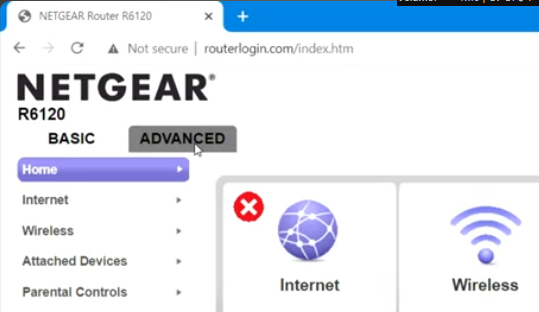
- Open a browser and enter http://routerlogin.net or http://192.168.1.1.
- Enter default username/password (see below).
- Change the password right away and enable Netgear Armor for security.
- For mobile: Use the Netgear Nighthawk or Orbi app for easier setup.
Netgear Security Tips
- Enable WPA3 or WPA2 encryption.
- Disable WPS and UPnP if unused.
- Set up guest Wi-Fi for visitors.
- Use Circle for parental controls.
- Change default SSID to something unique.
- Enable MAC address filtering.
- Disable remote management unless needed.
- Activate built-in firewall and DoS protection.
- Check for firmware updates monthly via the admin page.
- Use strong, unique passwords and two-factor if available.
Netgear Default Credentials
Netgear routers and modems come with factory-set default credentials for initial access. These are designed for easy setup but pose a security risk if not changed immediately after first login. Below is a detailed list of common defaults by model or series. Always verify on the device's sticker, manual, or Netgear's official support site (support.netgear.com) as variations can occur based on region or firmware version. Note: For app-based setups like newer Nighthawk or Orbi models, credentials may be set during initial mobile app configuration, bypassing traditional web login.
| Model/Series | Username | Password | IP Address |
|---|---|---|---|
| Most Netgear Routers (e.g., R series) Standard for basic home routers. Change password to prevent unauthorized access from nearby devices. |
admin | password | 192.168.1.1 or routerlogin.net |
| Nighthawk Series (e.g., RAX, AX models) High-performance gaming and streaming routers. Supports app setup; if using app, credentials are customized during installation. Firmware updates often prompt for password changes. |
admin | password | routerlogin.net |
| Orbi Mesh Systems (e.g., CBK, RBK series) Whole-home Wi-Fi systems for larger homes. Use Orbi app for seamless setup. Default password is weak – update to a strong one with at least 12 characters including symbols. |
admin | password | orbilogin.com or 192.168.1.1 |
| Modems (e.g., CM500, CM1000 cable modems) For standalone cable modems compatible with providers like Comcast or Spectrum. No Wi-Fi built-in; pair with a router. Check signal levels after login to ensure optimal performance. |
admin | password | 192.168.100.1 |
| Older Models (e.g., WNR, WNDR series) Legacy devices still in use in many homes. May have outdated firmware; recommend upgrading for better security features like WPA3. |
admin | password | 192.168.1.1 |
| Business/Insight Managed (e.g., GC, GS switches with router functions) For small business networks. 'sharedkey' may be used in some managed switches; consult Netgear ProSupport for enterprise setups. |
admin | password or sharedkey | 192.168.0.100 |
Important: After logging in with defaults, immediately change the admin password to a secure one. If forgotten, perform a factory reset, but this erases all custom settings like Wi-Fi names and port forwards. Netgear apps (available on App Store/Google Play) often simplify this process without needing defaults.
Troubleshooting Netgear Login Issues
Fix common problems:
- Ensure you're connected to the Netgear network.
- Run ipconfig (Windows) or ifconfig (Mac/Linux) to confirm gateway IP.
- Clear browser cache and try incognito mode.
- Disable VPN, proxy, or antivirus temporarily.
- Restart router and device; wait 2 minutes.
- Factory reset as last step (hold reset button).
- For modems: Check cable connections and signal.
If issues persist, visit Netgear support or use the app diagnostics.
Netgear WiFi Setup
Setting up WiFi on your Netgear router is straightforward. Follow these steps to configure your wireless network for optimal performance and security.
- Log in to your Netgear router admin panel using the steps outlined in the How to Log In section.
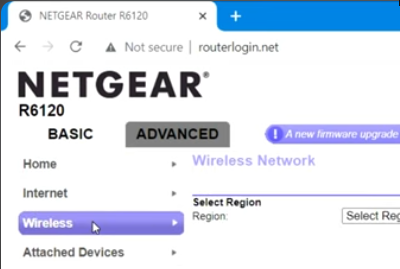
- Navigate to the "Wireless" or "WiFi Settings" section in the menu (may vary by model, e.g., under "Basic" or "Advanced" tabs).
- Set your WiFi Network Name (SSID) to something unique and easy to remember.
- Choose a strong WiFi Password (Network Key) – use at least 12 characters with a mix of letters, numbers, and symbols.
- Select the Security Mode: Recommend WPA3-Personal for newest devices, or WPA2-PSK (AES) for broader compatibility.
- Enable separate 2.4GHz and 5GHz bands if available, or use Smart Connect for automatic band steering on models like Nighthawk.
- For mesh systems like Orbi, set up satellites via the app for whole-home coverage.
- Save changes and reconnect your devices using the new WiFi credentials.
- Test connection speeds and coverage; adjust channel settings if interference is detected (use Auto or scan for best channel).
- For advanced features, enable Guest WiFi, set up parental controls via Circle, or use QoS to prioritize devices.
Tips: Use the Netgear mobile app for guided WiFi setup on smartphones. Regularly update firmware to access the latest WiFi standards like WiFi 6/6E on compatible models. If issues arise, refer to the Troubleshooting section.
Frequently Asked Questions
What is the default IP for Netgear?
Typically 192.168.1.1 or routerlogin.net; modems may use 192.168.100.1.
Can I access Netgear remotely?
Use the app's Anywhere Access; avoid unsecured remote IP access.
Forgot Netgear password?
Factory reset and use defaults; re-setup via app or web.
Safe to change Netgear settings?
Yes, use guided wizards in the admin panel or app.
HTTPS redirect on routerlogin.net?
Security feature; proceed on trusted networks.
Optimize Netgear performance?
Firmware updates, channel optimization, QoS settings.
Disclaimer
For educational purposes only. Do not use for unauthorized access. Information based on official Netgear resources.