In today's connected world, establishing a child safe network isn't just about technology; it's about empowering families to navigate the internet with confidence and care.
Why Build a Child Safe Network?
Imagine your home as a digital playground where kids can learn and have fun safely. Children spend more time online than ever, exploring educational resources, connecting with friends, and discovering new ideas. However, this digital playground comes with potential hazards like exposure to inappropriate content, cyberbullying, or excessive screen time that can affect sleep and focus. A child safe network uses parental controls on your router to mitigate these risks, creating boundaries that encourage beneficial habits.
Think of your router as the gatekeeper of your home's internet. By configuring it properly, you can filter out dangers while allowing beneficial access. This approach is especially vital for global households where online threats know no borders. For instance, parents in busy urban areas might worry about unsolicited ads or scams, while those in remote locations appreciate controls that work reliably without constant supervision.
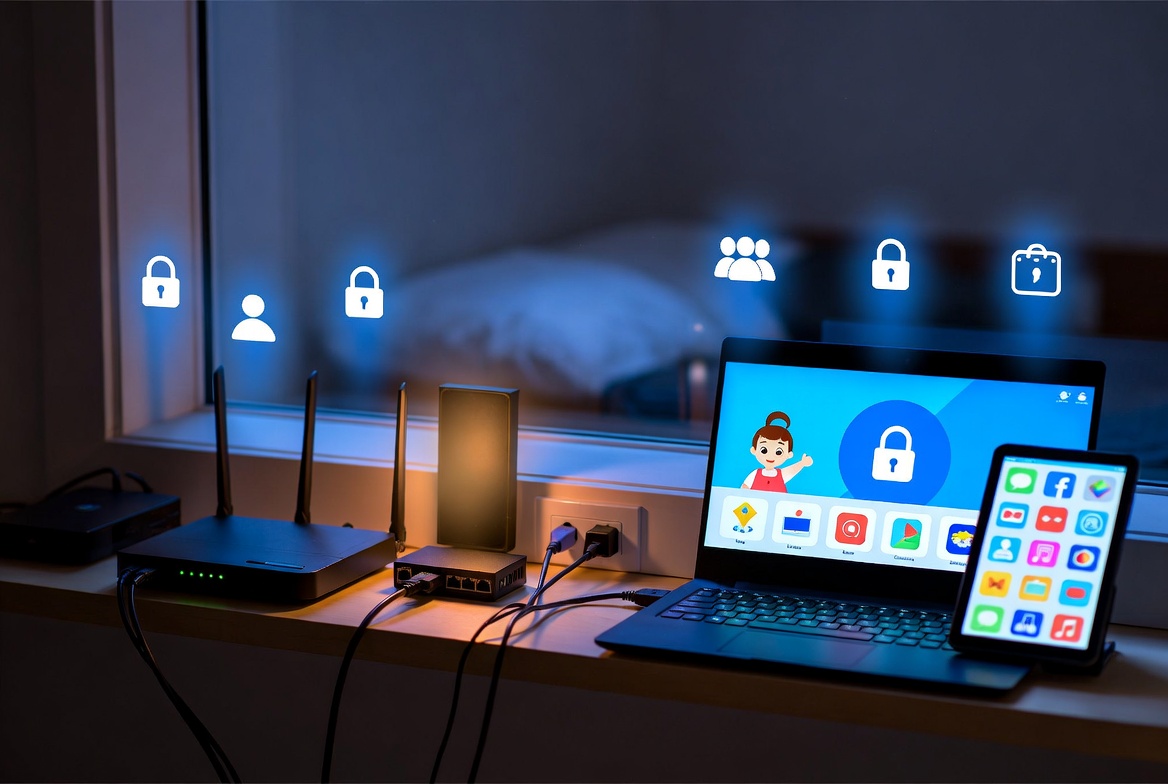
Check Your Router Compatibility
Before diving in, ensure your router supports the features you need. Not all routers offer the same level of parental controls, so starting with a compatibility check saves time and frustration. Begin by identifying your router model look for a label on the device itself, usually on the bottom or side, showing the manufacturer and model number.
Visit the manufacturer's website or use their support app to search for your model. For example, Netgear users can check if their router supports Circle by reviewing the product page or compatibility list. Similarly, TP-Link and Asus provide detailed specs on parental features like content filtering or time scheduling.
Key questions to ask:
- Does it support content filtering by category?
- Are there time limits and device-specific profiles?
- Is there integration with apps for remote management?
- What about security features like malware blocking?
If your model lacks advanced options, consider firmware updates or upgrading to a compatible device. Resources like CNET or Tom's Guide often review router capabilities, helping you compare models globally.
Key Features of Router Parental Controls
Unlock the power of smart features that make parenting in the digital age easier. Modern routers offer a suite of tools designed to tailor internet access. These features go beyond simple blocking, providing insights and flexibility to match your family's needs.
- Content Filtering: Blocks categories like adult sites, violence, or gambling based on databases updated regularly.
- Time Scheduling: Sets daily limits or bedtime cutoffs to promote balanced routines.
- Device Profiling: Assigns rules to specific gadgets, such as stricter limits on a child's tablet versus a shared TV.
- Usage Monitoring: Tracks browsing history and alerts parents to unusual activity.
- Pause Functionality: Instantly halts internet for a device, useful during family meals or study time.
Many systems integrate with apps for remote management, ensuring you can adjust settings from anywhere. Premium options often include advanced AI for detecting emerging threats.
General Steps to Set Up Parental Controls
Get started quickly with these straightforward steps to secure your network. Regardless of your router brand, the process follows a logical flow. Begin by ensuring your firmware is up to date for the latest security enhancements.
Understanding the technical foundation is key to effective implementation. Routers typically use default IP addresses for admin access, such as 192.168.0.1 or 192.168.1.1, which serve as gateways to the configuration interface. These addresses allow you to log in and customize settings securely. Always change default credentials during initial setup to prevent unauthorized access, as weak passwords can expose your network to risks.
Once inside the admin panel, explore the interface thoroughly. Many routers feature intuitive dashboards with search functions to locate parental control options quickly. Enabling these controls often involves activating a module or service, sometimes requiring a quick restart. From there, delve into advanced configurations like setting up guest networks for visitors, which keeps your main network isolated and protected.
Customization is where the real power lies. Profiles allow for age-appropriate settings: For toddlers, block all but educational sites; for teens, allow social media with time caps. Integrate monitoring tools to receive real-time alerts via email or app notifications, helping you stay proactive about potential issues.
Security experts recommend layering defenses. Combine router controls with DNS filtering services like OpenDNS FamilyShield for an extra barrier against malicious content. Regularly audit logs to understand usage patterns and adjust rules accordingly, ensuring the setup evolves with your family's needs.
Finally, involve IT best practices: Document your settings for easy reference, and schedule monthly reviews to incorporate new firmware features or address emerging threats. This comprehensive approach not only safeguards your children but also optimizes network performance overall.
- Connect to your network and open a browser to enter the router's IP address, typically 192.168.0.1 or 192.168.1.1.
- Log in with admin credentials; if unchanged, consult your manual to update them immediately for security.
- Locate the parental controls section, often under Advanced Settings or Security.
- Enable the feature and create profiles for each family member by adding their devices via MAC addresses.
- Customize rules: Select content filters, set time limits, and block specific sites if needed.
- Test the setup by attempting access from a controlled device and refine as necessary.
- Download the companion app for ongoing management and notifications.
This setup takes about 15-30 minutes but pays off in peace of mind. If issues arise, restart the router or check online forums for model-specific tips.
Detailed Router Features for Parental Controls
Discover which router brand fits your family's needs with this handy comparison. Different brands offer varying levels of sophistication. Here's a breakdown of popular options, highlighting what each can protect against to help you choose or optimize your current setup.
| Brand | Features & Protections | Limitations |
|---|---|---|
| Netgear (Circle) | Content filtering, time limits, usage history, pause button, premium ad-blocking; Blocks inappropriate sites, limits screen time to prevent addiction, monitors for cyberbullying indicators. | Basic free; premium subscription for advanced reports. |
| TP-Link (HomeCare) | Profiles per user, bedtime mode, insights reports, antivirus integration; Filters malware and phishing, enforces homework hours, tracks app usage. | Requires compatible models; no geo-fencing. |
| Linksys (Shield) | Site blocking, scheduling, device prioritization, app control; Prevents access to social media during school, alerts on suspicious activity. | Subscription-based; setup via app only. |
| Asus (AiProtection) | Trend Micro-powered filtering, web/app blocks, time scheduling, intrusion prevention; Guards against viruses, blocks violent content, limits gaming time. | Free but needs regular updates; complex interface. |
| D-Link | McAfee integration on select models, basic blocking, schedules; Shields from scams, sets daily quotas, basic content filters. | Limited on older models; inconsistent across lineup. |
| Google Nest | Family Wi-Fi pause, SafeSearch, site blocking, schedules; Promotes safe searches, halts access during meals, groups devices. | No advanced monitoring; tied to Google ecosystem. |
| Starlink | Basic device pausing and scheduling via app, no built-in filtering; Temporary blocks for timeouts, basic access control. | Limited features; recommend adding a third-party router for full protection like content filtering. |
For Starlink users, its satellite-based system excels in remote areas but falls short on granular controls. Connecting a compatible router like Netgear or Asus downstream enhances capabilities without compromising speed.
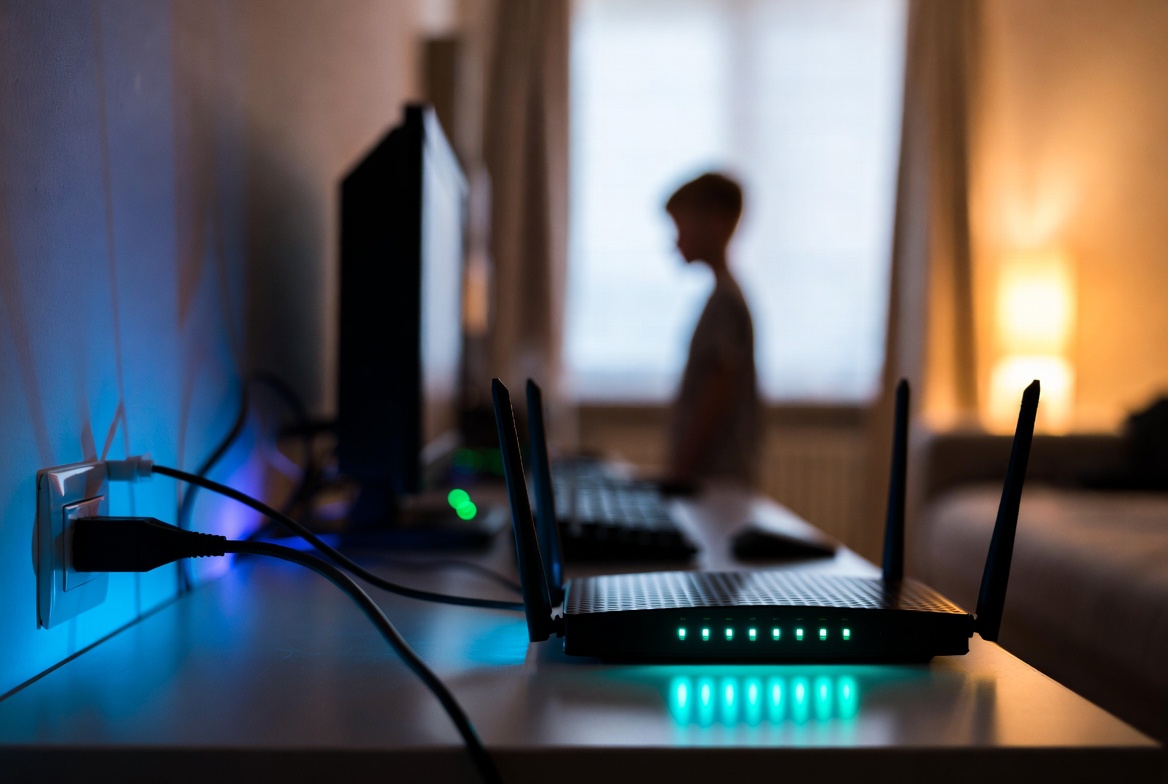
Real Examples of Protecting Children and Households
See how everyday families use these tools to create safer online experiences. Parental controls shine in everyday scenarios. Consider a family where kids use tablets for homework but often drift to games. Using TP-Link's bedtime mode, parents set automatic shutoff at 9 PM, ensuring restful nights and better focus the next day.
Another example: A teenager curious about social media encounters cyberbullying risks. With Netgear Circle, parents block specific apps during school hours and receive alerts if restricted sites are attempted, sparking discussions about safe online interactions.
In a multi-device home, Google Nest allows pausing the entire kids' group during dinner, fostering family time. For younger children, Asus AiProtection filters out violent cartoons, replacing them with educational alternatives.
These tools also protect against accidental exposure. One parent shared how Linksys Shield blocked a phishing site disguised as a game, preventing potential data theft. Combining with education, like teaching kids to report odd messages, builds long-term resilience.
Ethics and Privacy Considerations
Balance protection with respect for privacy to foster trust in your family. While parental controls offer valuable safeguards, they raise important ethical questions about monitoring and data collection. Features like usage tracking and browsing history logs can inadvertently invade a child's privacy, potentially eroding trust if not handled transparently.
Key concerns include:
- Data Security: Ensure logs are stored securely; use strong passwords and enable two-factor authentication on your router to prevent unauthorized access.
- Who Has Access: Only trusted adults should view monitoring data; avoid sharing with third parties unless necessary.
- Risks of Overreach: Excessive surveillance might hinder a child's autonomy, leading to resentment or sneaky behavior.
Government guidelines emphasize ethical use. The FTC advises open communication about monitoring, while the Department of Justice recommends avoiding unnecessary data collection. Studies from organizations like the ACM highlight privacy risks in parental apps, such as data leaks or hidden tracking.
Best practice: Discuss rules openly with your children, explaining the reasons behind controls to build understanding. Use monitoring as a teaching tool, not just enforcement, and regularly review settings to respect growing independence.
Best Practices and Educational Tips
Boost your family's online safety with these proven strategies and resources. Technology alone isn't enough; pair it with guidance to teach digital citizenship. Start conversations early about sharing personal info or recognizing fake news.
Practical tips include:
- Review usage reports weekly to spot trends and adjust rules.
- Encourage kids to ask before downloading apps, reducing malware risks.
- Use controls as a tool, not a secret; explain why they're in place to build trust.
- Layer protections: Combine router settings with device-level apps and family-safe DNS servers for comprehensive coverage. For instance, set your router's DNS to Cloudflare's family options (1.1.1.3 and 1.0.0.3 for malware and adult content blocking, or 1.1.1.2 and 1.0.0.2 for malware only). Other reliable choices include OpenDNS Family Shield (208.67.222.123 and 208.67.220.123 for adult content filtering), CleanBrowsing Family Filter (185.228.168.168 and 185.228.169.168 for family protection), NextDNS (customizable with kid-safe presets), or Quad9 (9.9.9.9 for malware blocking). These DNS settings add an extra layer by resolving domains safely at the network level.
- Stay informed through resources like the FTC's guide on protecting kids online or the FCC's online safety tips.
Programs from the FBI, such as their Safe Online Surfing challenge, offer interactive lessons for kids on avoiding dangers. Visit FBI's Safe Online Surfing for engaging activities that teach cybersecurity basics. Involving the whole family turns safety into a shared responsibility, making the internet a positive force.
Alternatives and Enhancements
Explore more options to supercharge your child safe network. For routers with limited features, like Starlink, add mesh systems such as Eero or Gryphon, which specialize in parental controls with AI-driven insights.
Alternative methods include DNS-based filtering like Cloudflare's Family DNS for network-wide protection, or device-specific controls via built-in OS features on iOS or Android. These complement router setups, especially for mobile data or VPN usage. Sources like Protect Young Eyes recommend combining layers for robust defense.
Software alternatives include Qustodio or Norton Family for device-specific monitoring. For ultimate protection, consider dedicated hardware like Firewalla for granular control over all traffic.
Troubleshooting Common Issues
Quick fixes to keep your parental controls running smoothly. If controls fail, check device connections or restart the router. For bypassing attempts, like using VPNs, advanced models like Asus can block those too.
Common fixes:
- Update firmware to patch bugs.
- Verify MAC addresses haven't changed.
- Clear browser caches on devices.
If overwhelmed, consult manufacturer support or community forums for tailored advice.
Top 10 Parental Control Applications
Enhance your router setup with these leading apps for device-level protection. While router controls provide network-wide safeguards, dedicated apps offer deeper insights and portability. Based on recent reviews and user feedback, here are the top picks for 2025, each with unique strengths in monitoring, filtering, and ease of use. We've included privacy notes based on expert analyses to help you assess risks.
- Qustodio: Comprehensive tracking with time limits, app blocking, and detailed reports; ideal for multi-device families. Privacy note: Strong encryption, but collects usage data; complies with COPPA.
- Bark: AI-powered alerts for risky content across texts, emails, and social media; excels in detecting cyberbullying. Privacy note: Scans messages, raising concerns for teen autonomy; uses anonymized data.
- Norton Family: Robust web filtering and location tracking integrated with antivirus protection for all-around security. Privacy note: Secure servers, but location data could be sensitive; GDPR compliant.
- Aura Parental Controls: User-friendly interface with identity theft monitoring; great for beginners seeking simplicity. Privacy note: Monitors financial risks, but shares data with partners; check terms carefully.
- mSpy: Advanced spying features like keylogging and call recording; suited for in-depth supervision. Privacy note: Highly invasive, potential for misuse; ensure legal compliance in your region.
- Mobicip: Customizable filters and screen time management with educational focus; supports school environments. Privacy note: Limited data collection, focuses on education; transparent policies.
- Net Nanny: Real-time content analysis and profanity masking; strong on web safety. Privacy note: Analyzes browsing in real-time, but anonymizes data; COPPA certified.
- Kaspersky Safe Kids: GPS tracking and battery alerts alongside content blocks; reliable for global users. Privacy note: Tracks location, which may concern privacy advocates; strong encryption used.
- Boomerang: App-specific controls and driving mode restrictions; perfect for mobile-heavy households. Privacy note: Focuses on device management, minimal external sharing; user-friendly privacy settings.
- FamilyTime: Geofencing and panic buttons for emergency alerts; emphasizes family communication. Privacy note: Geofencing collects location data; ensure consent and review data retention policies.
Choose based on your priorities, such as social media monitoring or ease of setup. Most offer free trials to test compatibility with your devices. Always review privacy policies, as apps like these can pose risks like data breaches if not secured properly.
Frequently Asked Questions
Why are parental controls essential for a child safe network?
They filter harmful content, limit screen time, and monitor activity to prevent exposure to risks like cyberbullying or inappropriate material.
Can Starlink routers provide effective parental controls?
Starlink offers basic device pausing via its app, but lacks advanced filtering; pair with a third-party router for better protection.
How do I start setting up controls on my router?
Access your router's admin panel via its IP, enable parental features, and customize profiles for each family member.
What government resources help with online child safety?
Sites like FTC and FCC provide guides on safe internet practices and tools for parents.
Are there real examples of parental controls in action?
Yes, such as blocking social media during homework hours or alerting parents to attempts to access restricted sites.
How effective are router-based controls compared to device apps?
Router controls enforce rules network-wide, making them harder to bypass than individual device settings.
What if my child tries to circumvent the controls?
Combine tech with open discussions about online safety to build trust and awareness.
Disclaimer
This guide is for informational purposes only and was last updated on December 06, 2025. Features vary by router model, firmware version, and region; always consult your device's manual or manufacturer for accurate instructions. Parental controls involve data collection, which carries privacy risks such as potential breaches or misuse; use them ethically, with open family discussions, and in compliance with laws like COPPA. We recommend verifying third-party apps for security vulnerabilities before installation. Prioritize building trust over surveillance to respect growing independence.